
Scheduling Posts
Plan your content calendar and schedule posts to publish at the perfect time.
How Scheduling Works
When you schedule a post, PostRite stores it and automatically publishes it at your chosen time. If you have notifications enabled, you'll receive an email when the post is published (or if there's an error).
Scheduling a Post
- Create your post content
- Select the platforms you want to publish to
- Click the Schedule button (calendar icon)
- Choose your date and time
- Click Schedule Post
Time Zones
Posts are scheduled using your organization's time zone. The time zone is set during onboarding and can be changed in Settings → Organization. All team members in the same organization share the same time zone setting.
How Far Ahead You Can Schedule
A post can be scheduled up to two years in advance. Beyond that, the date is rejected when you save. Platform access tokens are refreshed on a much shorter cycle than that, so a date years out is far more often a typo than an intention.
Drafts are the exception: a draft carries no date at all until you pick one, which is why it shows a dash instead of a date in the posts list. You have to choose a date and time before a draft can be scheduled.
Managing Scheduled Posts
Viewing Scheduled Posts
View all scheduled posts in the Posts section. Use the status filter to show only "Scheduled" posts. You'll see the scheduled date and time for each post.
Editing Scheduled Posts
You can edit a scheduled post at any time before it publishes:
- Find the post in your Posts list
- Click to open the post
- Make your changes
- Click Update to save
Note: If you're editing close to the scheduled time, make sure to save quickly to avoid the post publishing with old content.
Rescheduling Posts
To change the scheduled time:
- Open the scheduled post
- Click the Schedule button
- Select a new date and time
- Click Reschedule
Canceling Scheduled Posts
To cancel a scheduled post, open it and click Unschedule. This converts the post back to a draft without deleting it.
Best Times to Post
While the best posting times vary by audience, here are some general guidelines:
Twitter/X
- Best days: Tuesday through Thursday
- Best times: 9 AM - 12 PM
- Avoid: Late nights and weekends
- Best days: Tuesday, Wednesday, Thursday
- Best times: 7-8 AM, 12 PM, 5-6 PM
- Avoid: Weekends
- Best days: Monday through Friday
- Best times: 11 AM - 1 PM, 7 PM - 9 PM
- Weekends can work for lifestyle content
Pro Tip: Test different posting times and track your engagement to find what works best for your specific audience.
Bulk Scheduling
For power users, PostRite supports scheduling multiple posts at once. Create your posts as drafts, then select multiple and schedule them with different times.
Post Queue
The Queue page in the sidebar shows all your upcoming scheduled posts in chronological order. Use it to get a quick overview of what's going out and when.
- Posts are sorted by scheduled date, soonest first
- Filter by platform or status to narrow down the list
- Click any post to open it for editing or to cancel/reschedule
- The list refreshes on its own as posts reach their scheduled time — you'll see them move to publishing and then leave the queue without reloading the page
- Tick the box in front of several posts (or press x on a focused row) to cancel them, reschedule them all to one time, or request approval for them in a single batch — each post is handled on its own, so one failure never rolls back the others
- On a keyboard, j / k move between rows, Enter opens the focused post and Esc clears the selection
Calendar View
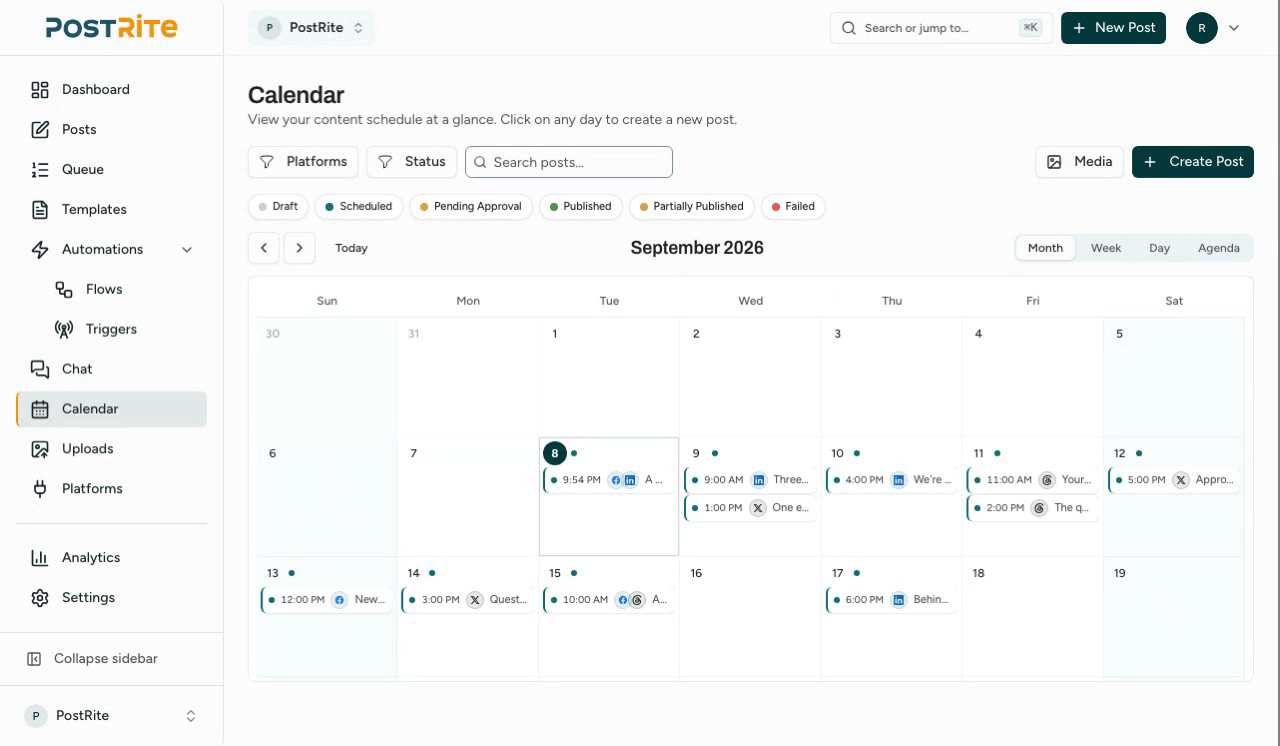
The Calendar page gives you a visual view of your scheduled content across month, week, day, and agenda layouts. It's useful for spotting gaps in your publishing cadence, checking time slots, and making quick schedule changes without reopening every post. All calendar times follow your organization timezone (set in Settings → Organization), so every teammate sees posts on the same day and hour regardless of where they are.
- The agenda view lists the month's posts chronologically, grouped by day — it's the default view on mobile
- Week and day views show posts at their exact minute, with a red line marking the current time; the grid opens scrolled to the current hour
- Click an empty time slot in week or day view to start a new post at that exact time
- Use the search box to filter the visible posts by their content text
Reschedule Existing Posts
Drag an existing scheduled post to another day or time slot to move it. This is the calendar's rescheduling flow for posts that already exist.
- Drag and drop scheduled posts to reschedule them to a different date or time
- Drops in week and day views snap to 15-minute increments, so you can place a post mid-hour
- Click on a day to see all posts scheduled for that date
- Switch between month, week, day, and agenda views depending on how much detail you need
Quick Actions Menu
Right-click a post on the calendar (or long-press on touch devices) for quick actions without leaving the page. Available actions depend on the post's status:
- Edit — open the post for editing
- Duplicate — open the editor pre-filled with a copy of the post
- Reschedule — pick a new date and time from a mini calendar
- Publish now — publish a draft or scheduled post immediately
- Retry — retry a failed or partially published post
- Cancel post — cancel a scheduled post
Quick Schedule From Media
The calendar also supports a separate quick-schedule flow for creating a new post. Open the side panel's Media tab and drag one or more media files onto a day, or drop files directly from Finder or Explorer onto the calendar.
- Drop onto a day in month view to start a new scheduled post for that day
- Drop onto a time slot in week or day view to prefill a specific publish time
- Choose platforms, adjust the time, and add shared content in the quick-schedule dialog
- Every platform option the editor offers is available here too, under Platform options — the section stays collapsed until you open it, and opens on its own if a platform reports a problem
- Validation issues are shown inline per platform so you can fix the exact problem instead of retrying blindly
- Turn on approval and name the approvers without leaving the dialog
- On a phone or tablet, open a day and use Quick schedule — the dialog opens as a bottom sheet
- Add more media from your library at any point, including after removing everything you dropped
- Use Open in editor if you need per-platform media, templates, or the post previews
Schedule a Draft
The side panel's Drafts tab lists your draft posts. Drag a draft onto a day (or a specific time slot) to schedule it — you'll get a confirmation with the target date and time before anything changes. If the draft is missing required details for its platforms, PostRite tells you what's missing so you can finish it in the editor first.
Three Drag-and-Drop Actions
The calendar supports three different drag-and-drop actions. Dragging a scheduled post moves an existing post. Dragging media or files onto the calendar starts a brand-new scheduled post. Dragging a draft from the Drafts tab schedules that existing draft.
Approval Workflow
Need someone to review your post before it goes live? Enable the Require Approval toggle and enter an approver's email. The post will wait in "Pending Approval" status until the approver reviews it via a secure email link. No PostRite account needed.
Learn more in the Approval Workflow guide.
What Happens When a Post Publishes
- PostRite attempts to publish to all selected platforms
- If successful, the post status changes to "Published"
- You receive an email confirmation (if notifications are enabled in Settings → Notifications)
- The post shows links to each published platform
If Publishing Fails
If a post fails to publish to any platform:
- The failed post shows the specific reason per platform (e.g. expired token, missing permissions, out of API credits) with the technical details available underneath
- Transient failures retry automatically: when a platform rate-limits the request or is temporarily down, PostRite re-attempts publishing after a short delay (up to 2 automatic retries) — you're only notified if the final attempt still fails
- You'll receive an email notification with the localized reason
- The post status shows "Failed" or "Partially Published"
- For permanent errors, fix the cause (reconnect the account, edit the content) and retry